---
title: How do I submit my assessment?
description: Discover how to submit your assessment on the LMS and confirm your submission before the deadline.
---
[Skip to content](https://knowledge.ucdpa.ie/help-centre/how-do-i-submit-my-assessment#main-content)
[Contact Us for More Support](https://knowledge.ucdpa.ie/help-centre/kb-tickets/new?hsLang=en-ie)
[](https://www.ucd.ie/professionalacademy/)
Open main navigation
Close main navigation
- [Contact Us for More Support](https://knowledge.ucdpa.ie/help-centre/kb-tickets/new)
Search our Services and Resources
- There are no suggestions because the search field is empty.
1. [Help Centre](https://knowledge.ucdpa.ie/help-centre?hsLang=en-ie)
2. [Assessment Support](https://knowledge.ucdpa.ie/help-centre/assessment-support?hsLang=en-ie)
# How do I submit my assessment?
Navigate to your course page and scroll to the final unit, Assessments

Click "Assessments" to expand the section

Click "Submit XXX" - this always has a pink icon

This will open a page called Submission Status. You will be able to see if a file is uploaded, when the assessment is due and whether it has been graded or not yet

By scrolling further down the page, you can view the marking rubric for that assessment which provides a clear explanation of the Learning Outcomes you are being graded against

Click "Add submission"

When you are doing this for the first time you will have to accept the high level Turnitin Terms and Conditions
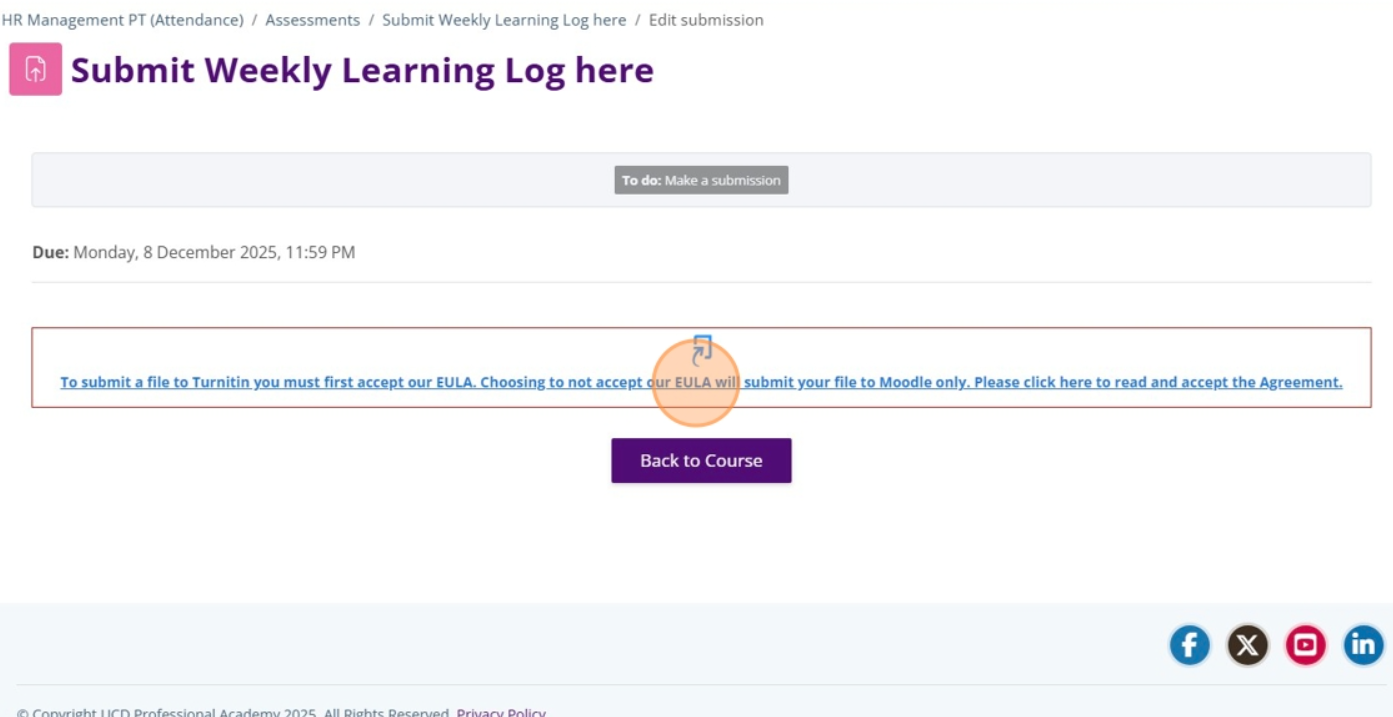
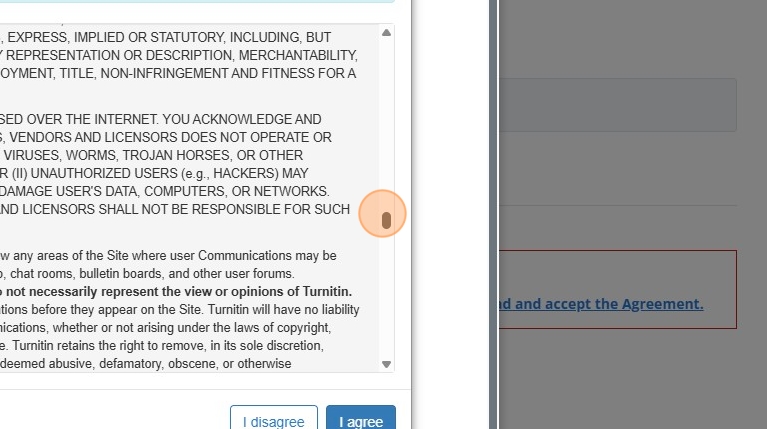
View the high level Terms and Conditions in the pop-up window
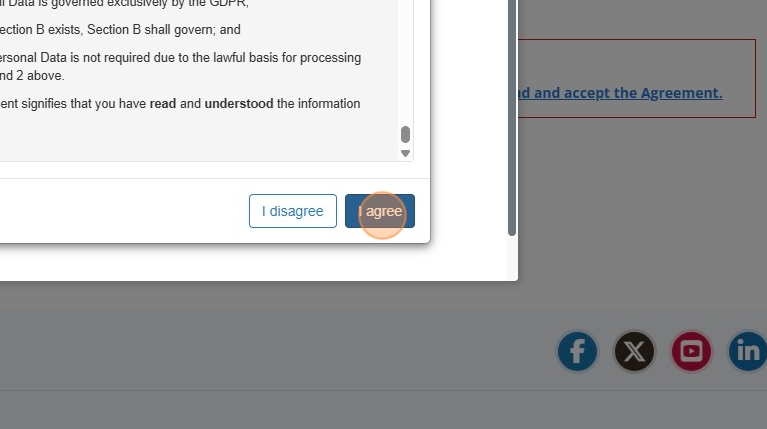
Click "I agree"
You can drag and drop your finished assessment file(s) here if you wish.
You can also click here to open your file explorer and select your finished assessment. If you chose to click and search for your file, it will open a new pop-up, as pictured below.

Click the "Choose File" button and select your finished assessment file(s).
There is no need to input data into any other section.

Once your files have been selected, click "Upload this file".

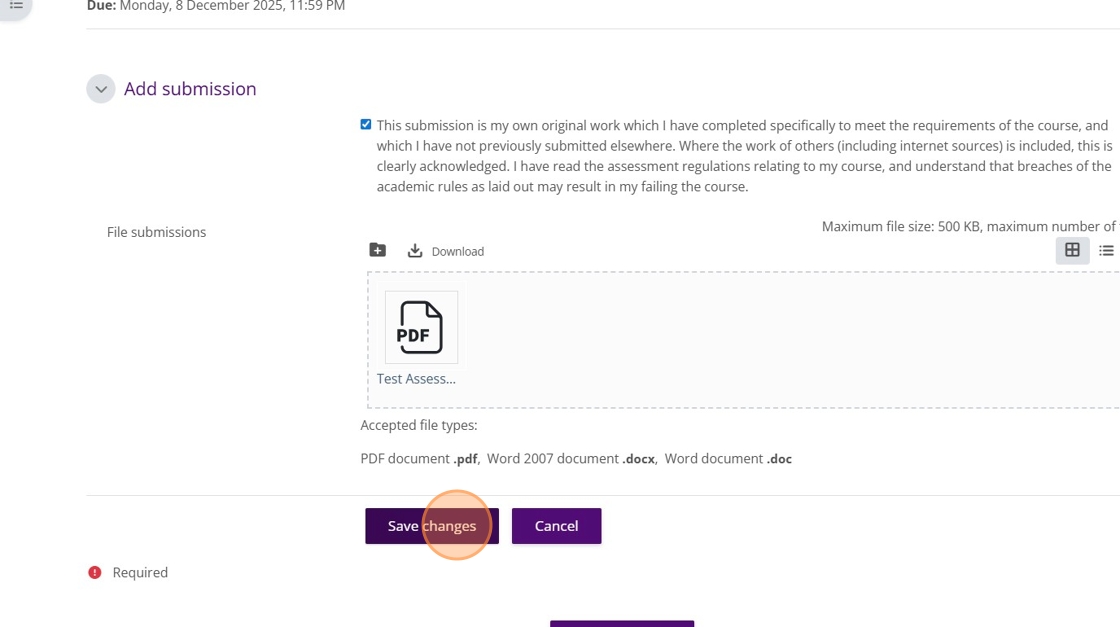
Click the to accept the assessment-specific level Turnitin T&Cs
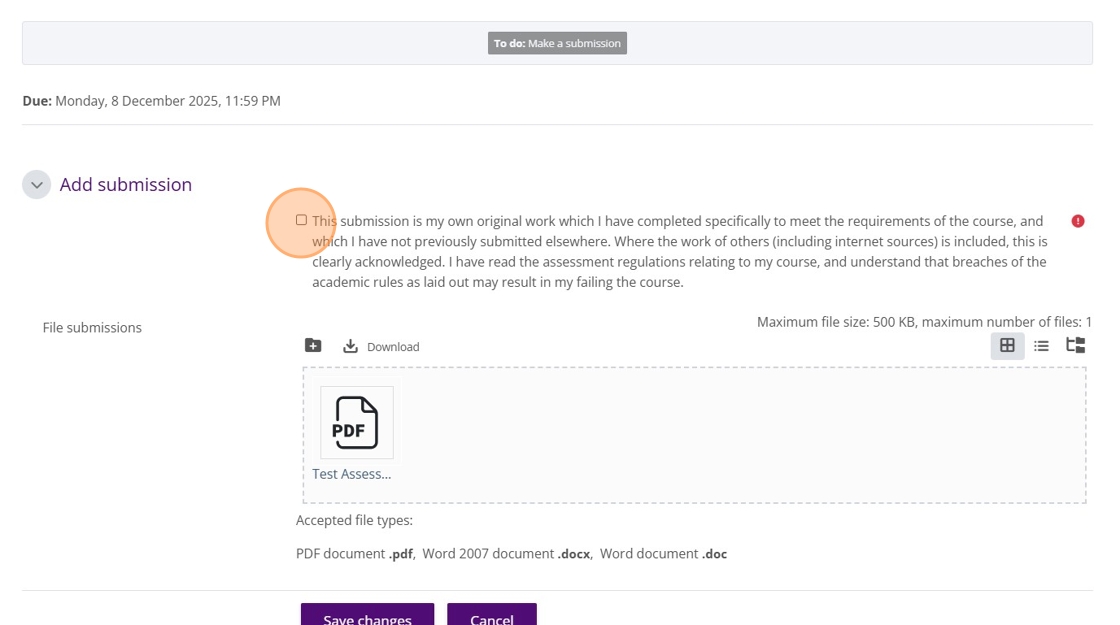
Click "Save changes"
As long as you see the green “**submitted for grading**” text, your assessment is fully accessible on our end and you have submitted your assessment correctly.
*You can edit your submission or remove your submission as many times as you like before the deadline, as pictured, but if you do so, **please ensure that the correct file(s) are uploaded by the due date deadline and time**.*

- [Assessment Support](https://knowledge.ucdpa.ie/help-centre/assessment-support?hsLang=en-ie)
- [Billing & Payments](https://knowledge.ucdpa.ie/help-centre/billing-payments?hsLang=en-ie)
- [Certification](https://knowledge.ucdpa.ie/help-centre/certification?hsLang=en-ie)
- [Corporate EnrolHub System](https://knowledge.ucdpa.ie/help-centre/corporate-enrolhub-system?hsLang=en-ie)
- [External Digital Services](https://knowledge.ucdpa.ie/help-centre/external-digital-services?hsLang=en-ie)
- [General](https://knowledge.ucdpa.ie/help-centre/general?hsLang=en-ie)
- [Joining the Team](https://knowledge.ucdpa.ie/help-centre/joining-the-team?hsLang=en-ie)
- [LMS](https://knowledge.ucdpa.ie/help-centre/lms?hsLang=en-ie)
- [Masterclasses](https://knowledge.ucdpa.ie/help-centre/masterclasses?hsLang=en-ie)
- [Policies](https://knowledge.ucdpa.ie/help-centre/policies?hsLang=en-ie)
- [Professional Academy Diploma Learners](https://knowledge.ucdpa.ie/help-centre/professional-academy-diploma-learners?hsLang=en-ie#main-content)
- [Part-Time Live Online Learners](https://knowledge.ucdpa.ie/help-centre/professional-academy-diploma-learners?hsLang=en-ie#part-time-live-online-learners)
- [On Demand Learners](https://knowledge.ucdpa.ie/help-centre/professional-academy-diploma-learners?hsLang=en-ie#on-demand-learners)
- [On Campus Learners](https://knowledge.ucdpa.ie/help-centre/professional-academy-diploma-learners?hsLang=en-ie#on-campus-learners)
- [Online Bootcamp Learners](https://knowledge.ucdpa.ie/help-centre/professional-academy-diploma-learners?hsLang=en-ie#online-bootcamp-learners)
- [Professional Academy Skill Sprint Learners](https://knowledge.ucdpa.ie/help-centre/professional-academy-skill-sprint-learners?hsLang=en-ie#main-content)
- [Live Online Learners](https://knowledge.ucdpa.ie/help-centre/professional-academy-skill-sprint-learners?hsLang=en-ie#live-online-learners)
- [On Demand Learners](https://knowledge.ucdpa.ie/help-centre/professional-academy-skill-sprint-learners?hsLang=en-ie#on-demand-learners)
- [Support](https://knowledge.ucdpa.ie/help-centre/support?hsLang=en-ie)
- [Results](https://knowledge.ucdpa.ie/help-centre/results?hsLang=en-ie)
**[Log-in to Learning Management System](https://learn.ucdpa.ie/login/index.php)**
Copyright © 2025, UCD Professional Academy