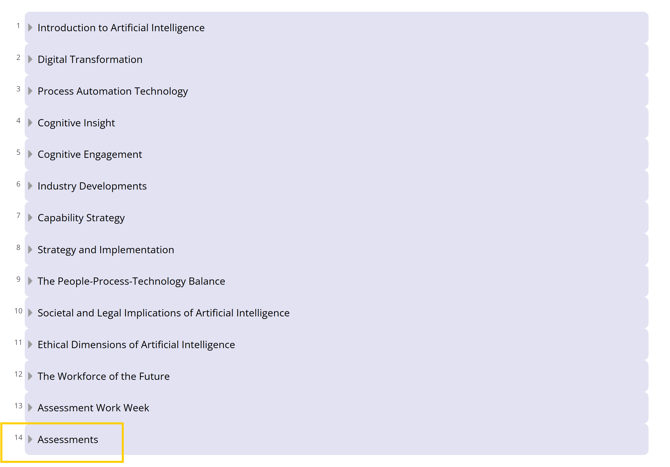
Log in to your Learning Management System (LMS) account and go to the course page of the course for which you would like to resubmit your assessment. Click on the Assessments tab.
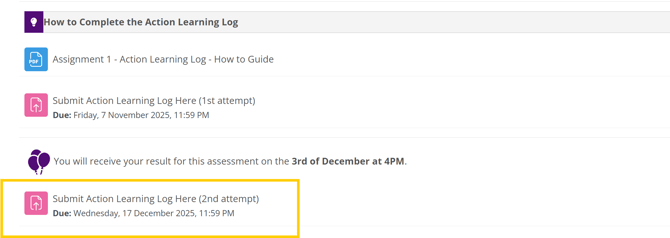
Scroll and locate the assessment you want to resubmit. If you have failed or missed the deadline, the resubmission link will appear after the results have been released (it is your responsibility to check your results after the posting date and time - you will not be notified by email). Click on the resubmission link (2nd Attempt).
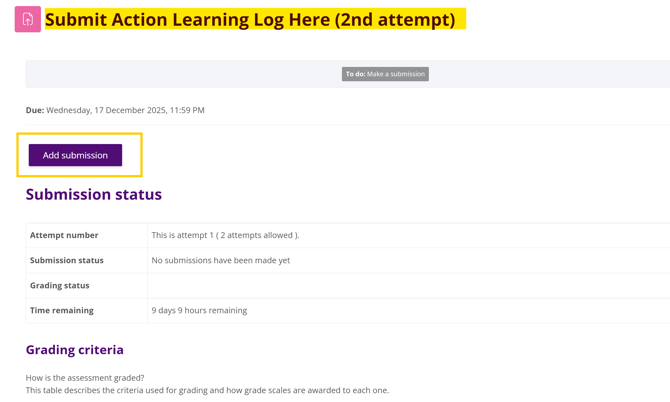
Once you click the link, the submission page will open. Click Add submission.
Click on the Turnitin Terms and Conditions link.
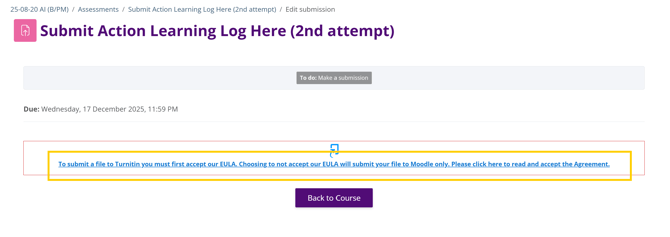
Read it carefully and click 'I Agree' at the bottom of the page.
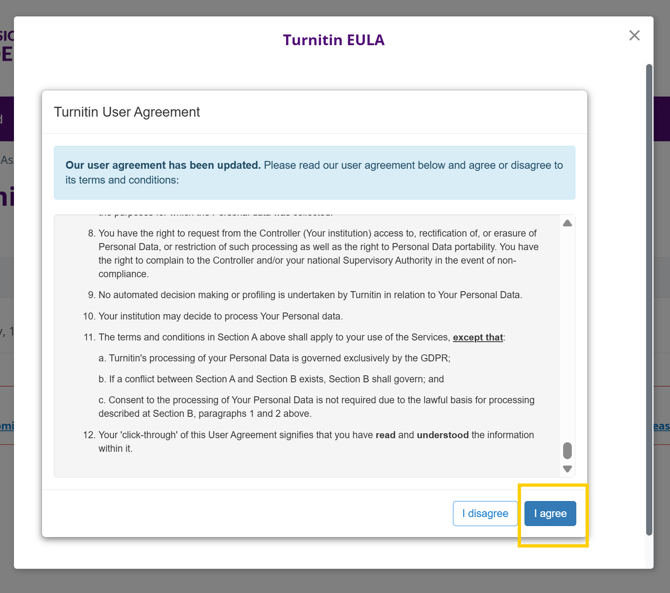
Then you will be redirected to the original resubmission page. Click to accept the assessment-specific level Turnitin T&Cs. Then click the 'Add' button to select your assessment.
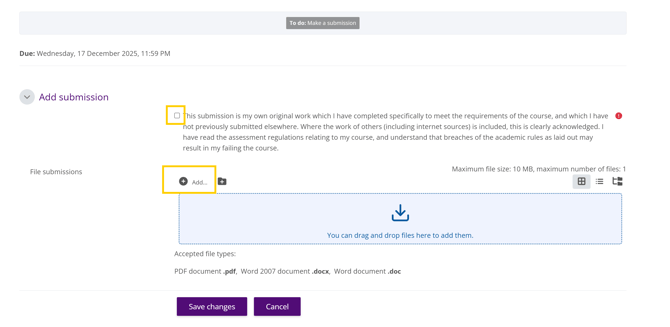
Choose the file to upload. Once selected, click 'Upload this file'.
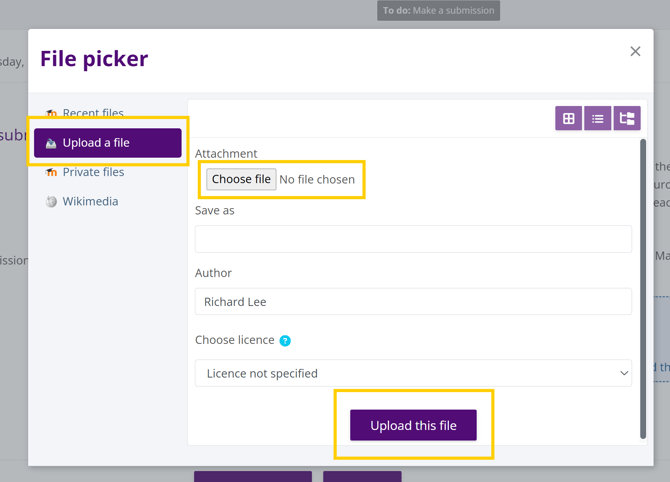
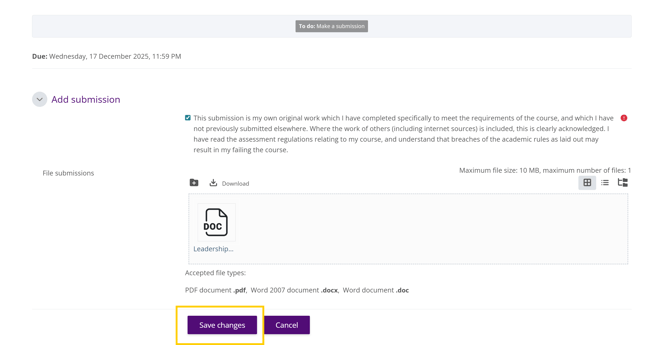
Once the file is uploaded, click 'Save changes' to upload your assessment and send it for grading.